API de WP Guardian
Introducción
Este tema va dirigido a los socios de Plesk o cPanel que quieran vender VPS con WP Guardian instalado y con licencia. Proporcionamos un procedimiento paso a paso y ejemplos de llamadas a la API necesarias para instalar y activar la licencia de WP Guardian en el VPS de un cliente.
Requisitos mínimos
Como socio de Plesk o cPanel, necesita tener acceso a sus API correspondientes: Key Administrator para Plesk y Manage2 para cPanel, respectivamente.
Tener acceso significa que dispone de las credenciales necesarias para utilizar las API, que son $AUTH_TOKEN básico para Key Administrator y el par nombre de usuario / contraseña para Manage2.
Nota
Si no dispone de las credenciales mencionadas, póngase en contacto con el administrador de su cuenta de Plesk o cPanel.
Algoritmo general y esquemas detallados
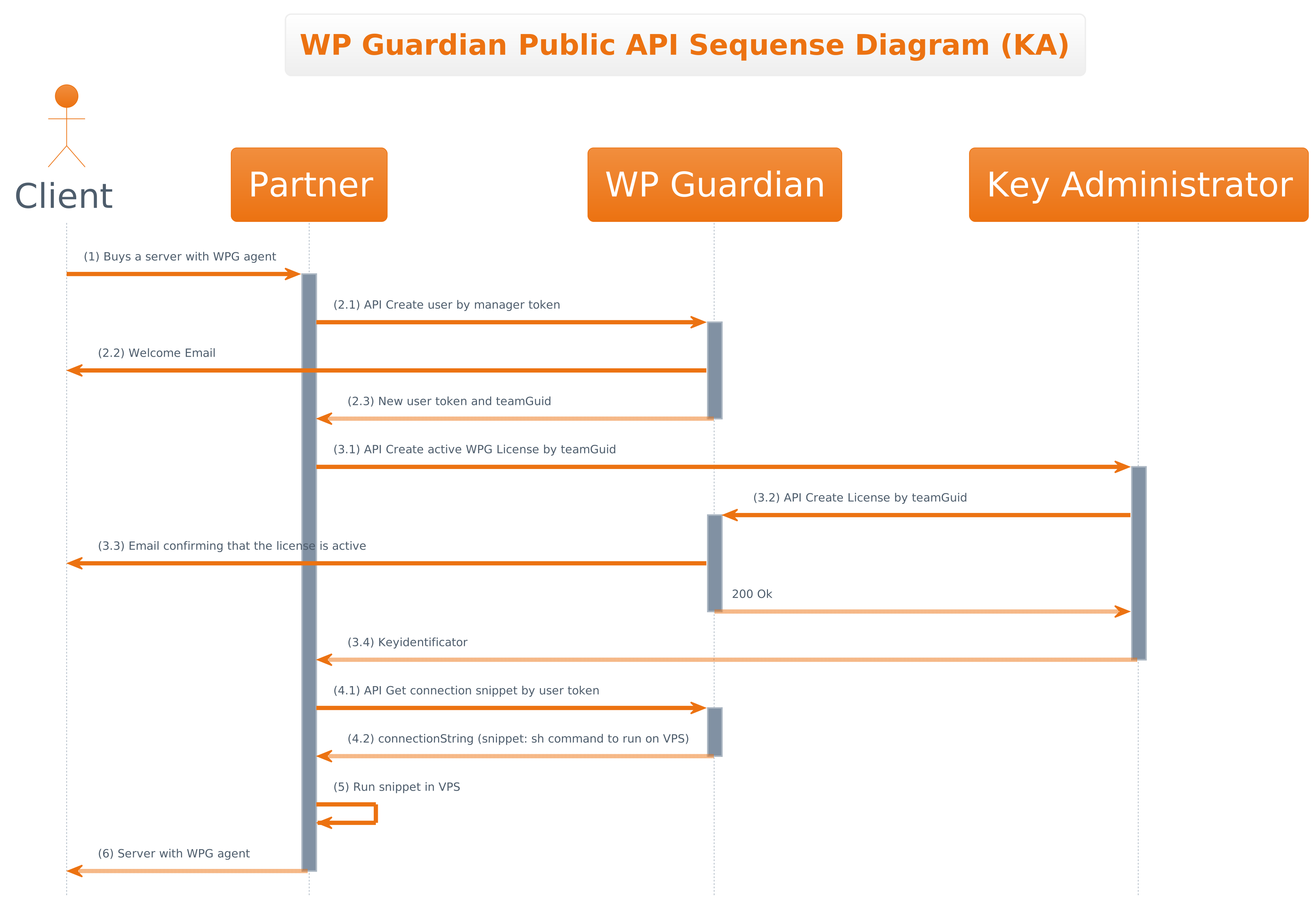
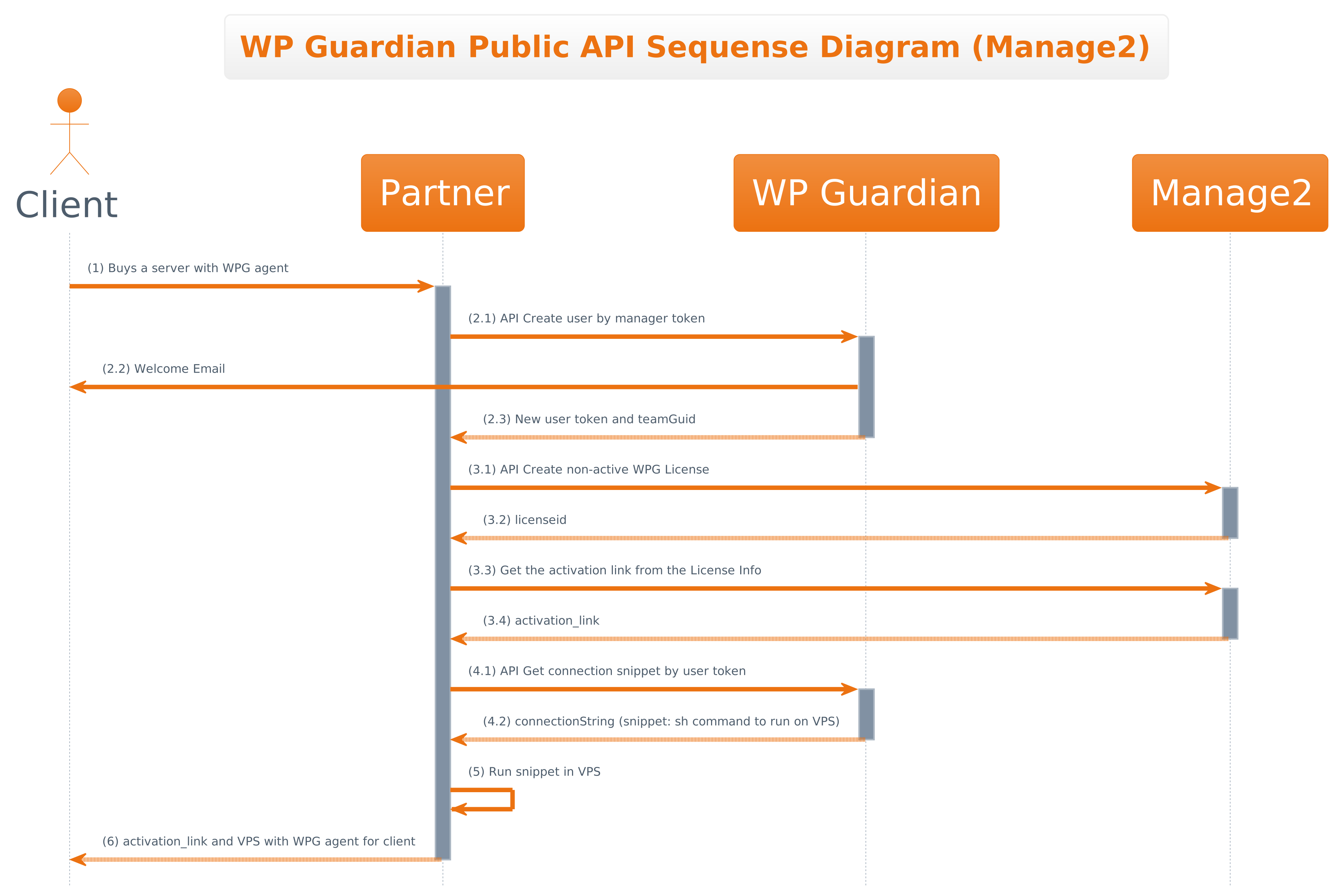
El procedimiento empieza cuando un cliente realiza un pedido (paso 1) y termina cuando usted le entrega un VPS listo para usar (paso 6). Para el resto del procedimiento, deberá seguir los siguientes pasos:
(2) Crear un usuario de WP Guardian.
(3) Crear una licencia de WP Guardian.
(4) Obtener el snippet de la cadena de conexión.
(5) Ejecutar el snippet de la cadena de conexión en el VPS del cliente.
Excepto el paso 3, todos los pasos anteriores son similares para Key Administrator y Manage2. Por lo tanto, ofreceremos dos secciones separadas sobre cómo crear una licencia de WP Guardian con Key Administrator y Manage2.
Para ayudarle a entender mejor las diferencias entre Key Administrator y Manage2, le adjuntamos el esquema detallado de cada una de estas API. A partir de ahí, también utilizaremos la numeración que aparece en esos esquemas (por ejemplo, Petición a la API 2.1 o Respuesta 4.2). Si se pierde en el texto, consulte los esquemas que aparecen a continuación para mayor claridad.
2. Creación de un usuario de WP Guardian
Para crear un usuario a través de la API de WP Guardian, primero debe obtener un token de gestión. Para ello, póngase en contacto con un representante comercial de WP Guardian o con el equipo de atención al cliente de Plesk.
Una vez que obtenga el token de gestión, envíe la petición con el siguiente patrón añadiendo el token a la cabecera Authorization:
Petición 2.1
POST https://app.wpguardian.io/api/v1/security-dashboard/management/users HTTP/1.1
Authorization: Bearer $MANAGEMENT_TOKEN
Content-Type: application/json
{
  "email": "john.doe@example.com",
  "firstName": "John",
  "lastName": "Doe"
}
Si Petición 2.1 se efectúa correctamente, recibirá la respuesta con el siguiente patrón:
Respuesta 2.3
HTTP/1.1 201 Created
{
  "data": {
    "userGuid": "1092a1a6-a716-400d-aba5-ad853a330561",
    "teamGuid": "1247c8bc-6d5d-41f6-9bda-007a6e6fb20c",
    "userToken": "368ded8f-883a-4759-9f28-8906c3e5136c"
  }
}
La respuesta contiene tres valores. Guarde dos de ellos (teamGuid y userToken) para usarlos más adelante:
teamGuidse utiliza para actualizar o terminar una licencia de WP Guardian.userTokenpermite conectar más servidores a la cuenta del usuario.
Si Petición 2.1 no se efectúa correctamente, recibirá la siguiente respuesta de error:
Respuesta de error: Invalid token response (Respuesta de token no válida)
HTTP/1.1 401 Unauthorized
Si el usuario con la información enviada ya existe, recibirá la siguiente respuesta de error:
Respuesta de error: The user already exists (El usuario ya existe)
HTTP/1.1 409 Conflict
3. Creación de una licencia de WP Guardian (Key Administrator)
Nota
Cada usuario de WP Guardian solo puede tener una licencia activa a la vez.
Puede crear una licencia para un usuario de WP Guardian a través de Key Administrator Partner API.
Para crear una licencia, envíe la petición con el siguiente patrón:
Petición 3.1
POST https://api.central.plesk.com/30/keys?return-key-state=yes
Authorization: Basic: $AUTH_TOKEN
Content-Type: application/json
{
    "activationInfo": { "uid": "1247c8bc-6d5d-41f6-9bda-007a6e6fb20c" },
    "items": [
        {
            "item": "WPG-PLSK-1-1M"
        }
    ]
}
donde
$AUTH_TOKENes un token necesario para acceder a Key Administrator Partner API. Todos los socios de Plesk lo tienen.uidenactivationInfoesteamGuidde Respuesta 2.3.-
itemenitemses el tipo de licencia y puede ser uno de los siguientes: -
WPG-PLSK-1-1M WPG-PLSK-5-1MWPG-PLSK-10-1MWPG-PLSK-30-1MWPG-PLSK-50-1M
!!! nota
Para ver la lista de todos los tipos de licencias de WP Guardian disponibles, consulte la [sección "Partner API 3.0 Constants"](https://docs.plesk.com/en-US/obsidian/partner-api-3.0/partner-api-30-constants.77835/){target=_blank} (`"category":"WP Guardian Keys"`).
Si Petición 3.1 se efectúa correctamente, recibirá la respuesta con el siguiente patrón:
Respuesta 3.4
HTTP/1.1 201 Created
{
  "ownerId": "700540512",
  "keyIdentifiers": {
    "keyId": 17654729,
    "keyNumber": "WPG.17654729.0000",
    "activationCode": "AB1234-CD5678-EF9012-GH123-IJ456",
    "activationLink": "https://app.wpguardian.io/licensing/activate-license?code=AB1234-CD5678-EF9012-GH123-IJ456&product=WP+Guardian+1+Site"
  },
  "parentKeyIdentifiers": null,
  "activationInfo": {
    "uid": "1247c8bc-6d5d-41f6-9bda-007a6e6fb20c",
    "activated": true
  },
  "ipAddressBinding": null,
  "nickname": "",
  "productConfigurationId": null,
  "items": [
    {
      "externalId": null,
      "item": "WPG-PLSK-1-1M"
    }
  ],
  "creationDate": "2024-09-12T10:34:11.741Z",
  "lastModificationDate": "2024-09-12T10:34:11.763Z",
  "updateDate": "2024-10-12T00:00:00.000Z",
  "expirationDate": "2024-10-22T00:00:00.000Z",
  "susExpirationDate": null,
  "susStatus": null,
  "supportExpirationDate": null,
  "supportStatus": null,
  "status": "ACTIVE",
  "terminated": false,
  "suspended": false,
  "ownerSuspended": false,
  "autoRenew": true,
  "restrictIPBinding": false,
  "frauds": [],
  "lastReportingDate": null,
  "lastReportingIp": null,
  "lastReportingOs": null,
  "childKeyIdentifiers": [],
  "overridingKeyIdentifiers": null
}
Si Petición 3.1 no se efectúa correctamente, recibirá la siguiente respuesta de error:
Respuesta de error: Invalid token response (Respuesta de token no válida)
HTTP/1.1 401
Content-Type: application/json
Content-Length: 77
{"code":"401","type":"6011","message":"The request requires authentication."}
Si el usuario ya tiene una licencia activa, recibirá la siguiente respuesta de error:
Respuesta de error: Third party error (Error de terceros)
HTTP/1.1 404
Content-Type: application/json
{"code":"404","type":"6101","message":"Third party server returned an error"}
3. Creación de una licencia de WP Guardian (Manage2)
A diferencia de Key Administrator, Manage2 no admite la creación de una licencia ya vinculada a un usuario específico. Primero, cree una licencia no activa, genere el enlace de activación para la licencia y envíe el enlace al cliente. Una vez que el cliente abra el enlace, la licencia se activará y quedará vinculada al cliente.
Veamos cómo realizar cada paso.
Paso 1. Cree una licencia no activa de WP Guardian enviando la petición a la API con el siguiente patrón:
Petición 3.1
GET https://manage2.cpanel.net/XMLlicenseAdd.cgi?output=json&packageid=P999994429&sites==500
Authorization Basic: login:password
donde
login:passwordes el par nombre de usuario /contraseña necesario para acceder a la API de Manage2. Todos los socios de cPanel lo tienen.packageIDes el tipo de licencia y puede ser uno de los siguientes:- "P999994429": "WP Guardian 500 Sites"
- "P999994429": "WP Guardian 1000 Sites"
- "P999994441": "WP Guardian 10000+ Sites Pay As You Go"
- el parámetro
sitesdebe coincidir con el tipo de licencia. Por ejemplo, si el tipo de licencia esP999994429, entonces el parámetrositeses 500, y así sucesivamente.
!!! nota
Para ver la lista de todos los tipos de licencias de WP Guardian disponibles, [utilice la API de Manage2](https://docs.cpanel.net/manage2/api/manage2-api-list-package-information/){target=_blank}.
!!! nota
[La salida de la API de Manage2](https://docs.cpanel.net/manage2/api/manage2-api-list-package-information/){target=_blank} contiene dos productos: "WP Guardian N Sites" y "WP Guardian (cPanel Addon) N Sites Pack". Necesita el primero.
Si Petición 3.1 se efectúa correctamente, recibirá la respuesta con el siguiente patrón:
Respuesta 3.2
{
    "monthly_price": "21.34",
    "status": 1,
    "yearly": 0,
    "reason": "Activated EXAMPLECOMPANY license on in the 'example' group.",
    "price": "0.00",
    "promoinfo": "",
    "licenseid": "17654729"
}
Copie el valor licenseid de la respuesta para utilizarlo más tarde.
Paso 2. Genere el enlace de activación enviando la petición a la API con el siguiente patrón:
Petición 3.3
{
GET https://manage2.cpanel.net/XMLlicenseInfo.cgi?output=json&liscid=17654729
Authorization Basic: login:password
}
donde liscid es licenseid de la Respuesta 3.2.
Si Petición 3.3 se efectúa correctamente, recibirá la respuesta con el siguiente patrón:
Respuesta 3.4
{
    "licenses": {
        "17654729": {
            "accounts": 1,
...
            "activation_link": "https://app.wpguardian.io/licensing/activate-license?code=A00300-GEX111-577J59-A6AG72-AEKX66&product=WP+Guardian+500+Sites ",
...
        }
    },
    "reason": "OK",
    "status": 1,
    "version": 0.7
}
Paso 3. Guarde el enlace de activación recibido en Respuesta 3.4 y envíelo al cliente. Asegúrese de que el cliente abra el enlace. Al abrir el enlace, se activará la licencia y quedará vinculada al cliente.
4. Obtención del snippet de la cadena de conexión
El snippet de la cadena de conexión es un script que debe obtener de la API de WP Guardian. Al ejecutar el snippet en el servidor de un cliente, lo conecta a WP Guardian.
Para obtener el snippet, envíe la petición a la API con siguiente patrón:
Petición 4.1
GET https://app.wpguardian.io/api/v1/security-dashboard/connection-snippet
Authorization: Bearer $USER_TOKEN
Content-Type: application/json
donde $USER_TOKEN es userToken de Respuesta 2.3.
Si la petición a la API es correcta, recibirá la respuesta con el siguiente patrón:
Respuesta 4.2
{
    "data": {
        "expireAt": "2024-09-24T17:18:51.697Z",
        "snippet": "<script to run on a client's VPS>"
    }
}
5. Ejecución del snippet en el VPS de un cliente
El último paso consiste en ejecutar el snippet de la cadena de conexión recibido durante el paso anterior en el VPS del cliente. Una vez hecho esto, ya estará listo el VPS con WP Guardian. ¡Enhorabuena!
Nota
El snippet conecta automáticamente el VPS de un cliente a WP Guardian.
Si, por algún motivo, el snippet falla, puede resolver el problema [conectando un VPS a WP Guardian manualmente]( https://docs.wpguardian.io/index.html#connecting-servers-to-wp-guardian){target=_blank}.